 RoomDisk
AirDrop failing on big videos? Send them so they finish
AirDrop is great for a few photos between Apple devices. Long transfers of large videos are where it struggles: a locked screen, distance, or interference can stop the transfer, and it starts over from zero. It also doesn’t work with Windows or Android.
How to do it
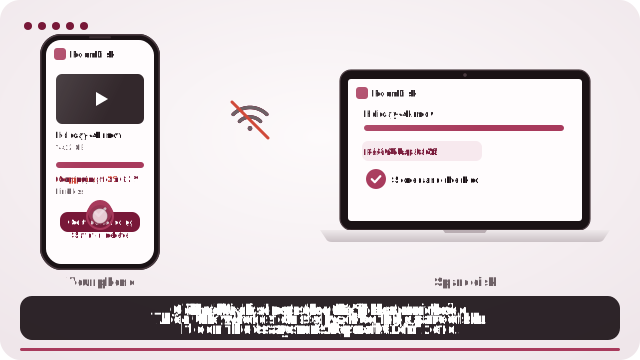
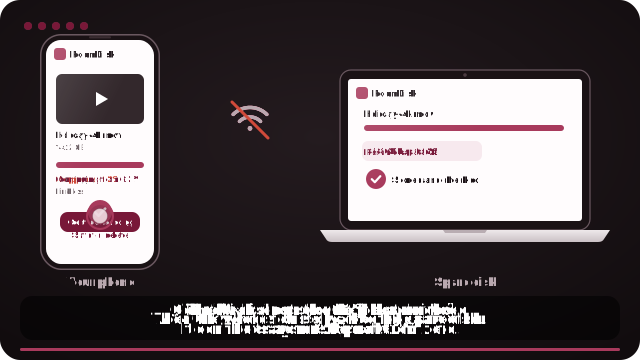
- Open roomdisk.com/app on the device that will keep the files and choose Use this device as the spare disk. It shows a QR code.
- On the phone or computer with the files, scan that code. A phone’s Camera app works: tap the roomdisk.com link that pops up. RoomDisk opens and shows its own code.
- On the spare disk, tap Scan reply and hold the phone’s screen up to its camera. (No camera there? Tap Share reply on the phone and open it on the disk device.)
- Both screens say Connected. Choose files and send. Each file is checked when it lands.
Why people switch to RoomDisk
- Continues where it stopped. Send the same file again and it resumes.
- Keeps both screens awake while files are moving.
- Any device: iPhone, Android, Windows, Mac, Linux.
- Checked copies with a receipt.
If you stay with AirDrop
- Keep the devices within a few metres and unlocked.
- Set receiving to “Everyone for 10 minutes” if you’re not in each other’s contacts.
- Turn off VPNs and check Screen Time isn’t blocking AirDrop.
AirDrop is a trademark of its owner. RoomDisk isn’t affiliated with it.
Try it with the two devices you have
Free to start. Nothing to install, no account.