 RoomDisk
Help guide
Everything RoomDisk does, each with a short animated walkthrough. Start with pairing; the rest takes a minute each.
Get started: pair two devices
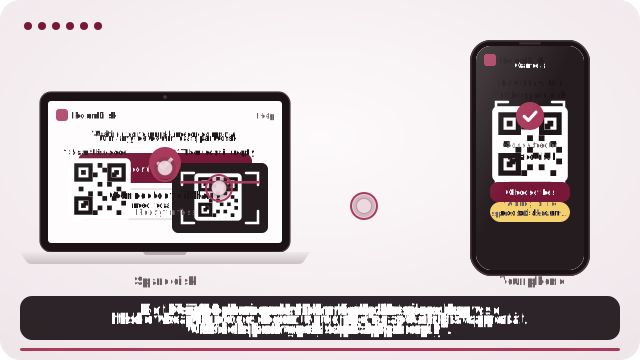
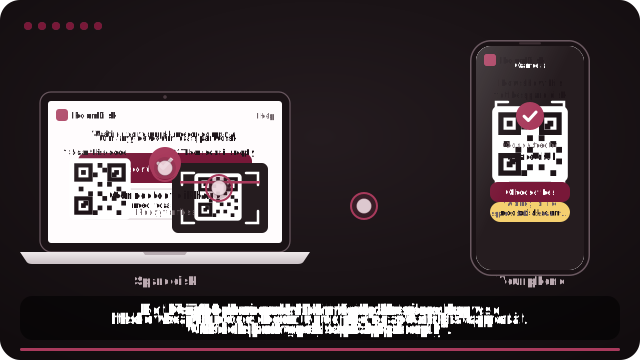
- Open roomdisk.com/app on the device that will keep the files and choose Use this device as the spare disk. It shows a QR code.
- On the phone or computer with the files, scan that code. A phone’s Camera app works: tap the roomdisk.com link that pops up. RoomDisk opens and shows its own code.
- On the spare disk, tap Scan reply and hold the phone’s screen up to its camera. (No camera there? Tap Share reply on the phone and open it on the disk device.)
- Both screens say Connected. Choose files and send. Each file is checked when it lands.
Both devices need to reach each other: the same Wi-Fi, or one device’s hotspot (no data plan needed). To reach your disk from another network, there’s RoomDisk Anywhere.
The camera only turns on when you tap a scan button, and turns itself off after two minutes. Nothing is recorded. If you’d rather not use a camera, “Paste code” and “Share reply” do the same job.
The first time a device connects, the disk asks you to Allow it. After that it’s remembered: it connects without asking and can see and change files. Remove a device under Devices on the disk; it’s disconnected at once.
Send photos and files
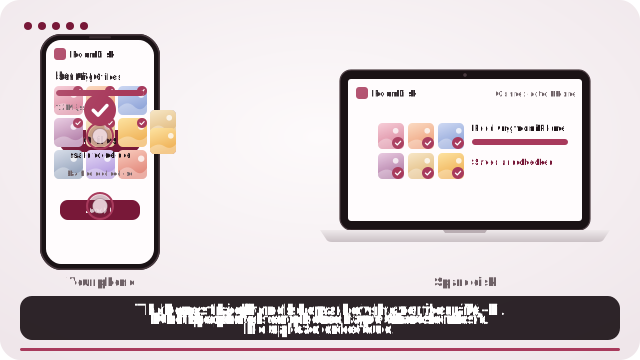
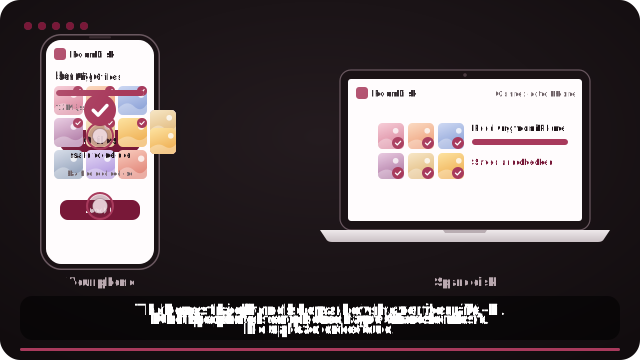
- Tap Choose files (or Choose a folder on a computer, or drop files onto the page).
- Watch the progress: speed and time left are shown. Keep both screens on until it finishes.
- When it’s done, the phone says how many files are safe to delete, with a receipt you can download.
On iPhone, for exact originals, tap Options in the photo picker and choose Current, or pick from the Files app. Otherwise iPhone may send converted copies.
Is it safe to delete?
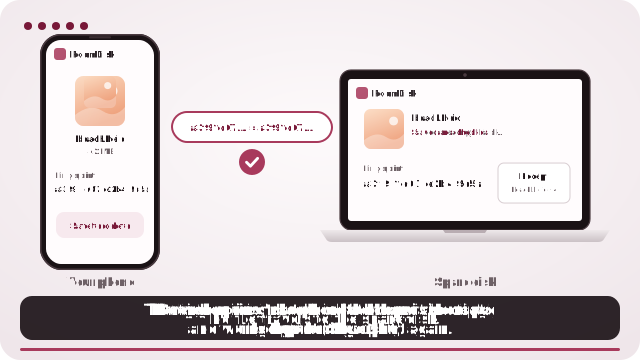
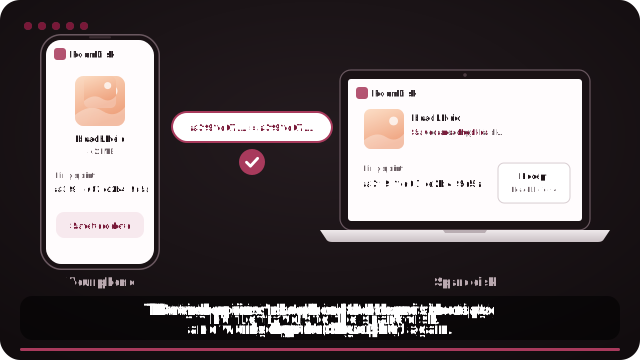
RoomDisk fingerprints each file (SHA-256) on the sending device. The disk writes it, reads it back and fingerprints it again. Only when both match is the file counted as safe to delete.
Use Backed up? on the phone to check any files against the disk by content, not by name. Every batch also writes a receipt on the disk, which you can check yourself with shasum -a 256.
Big files and interruptions
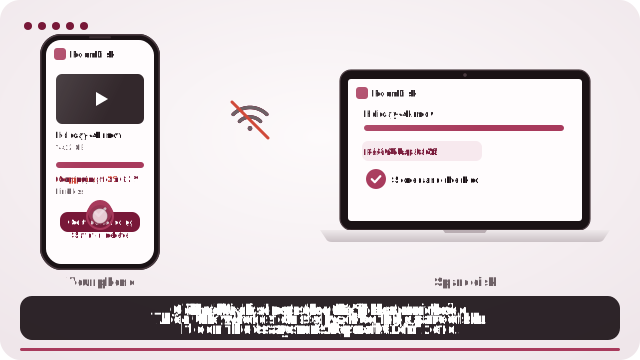
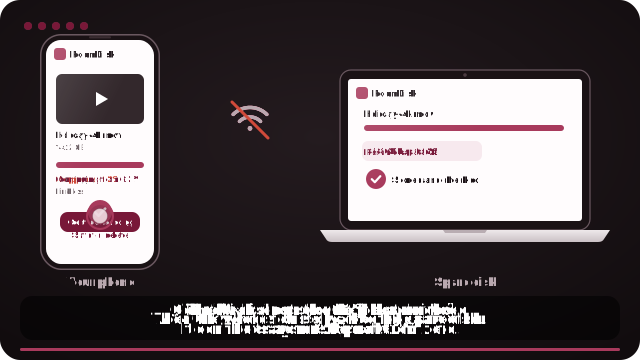
If the link drops (Wi-Fi, a locked screen, a closed tab), nothing is lost: pair again and send the same files. Each one continues from where it stopped; files already on the disk are skipped.
Short trips to another app are fine: the other device waits up to 45 seconds for it to come back.
Browse, preview and stream
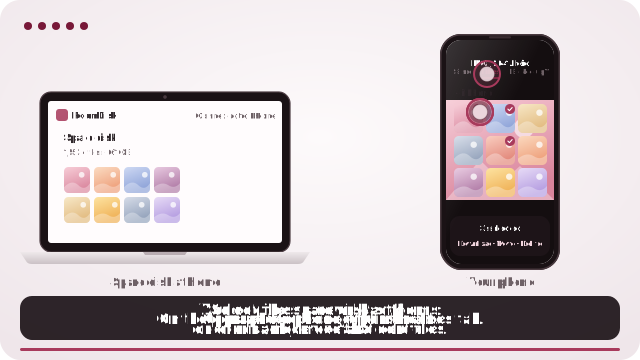
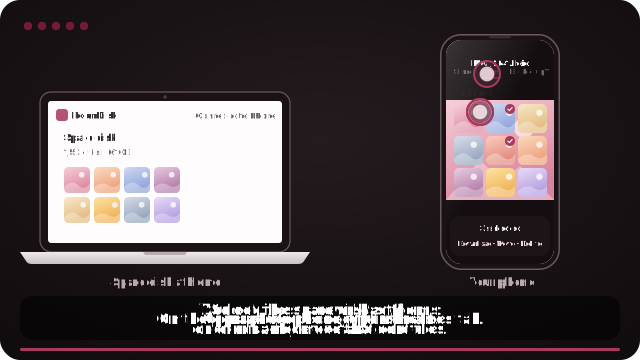
Open Files on a connected device to browse the disk: folders per device, thumbnails, search, sort, grid or list. Tap a photo for full screen; swipe or use the arrow keys for the next one.
Videos and music play straight from the disk and you can skip anywhere, without downloading first (after you’ve opened RoomDisk once on that device). Select files to download, rename, move into folders or delete. Only remembered devices can change files.
Watch videos from the disk
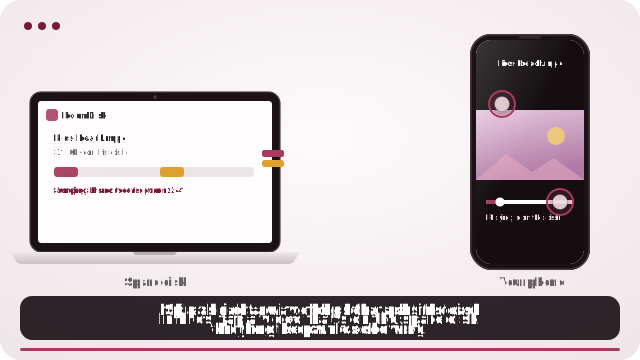
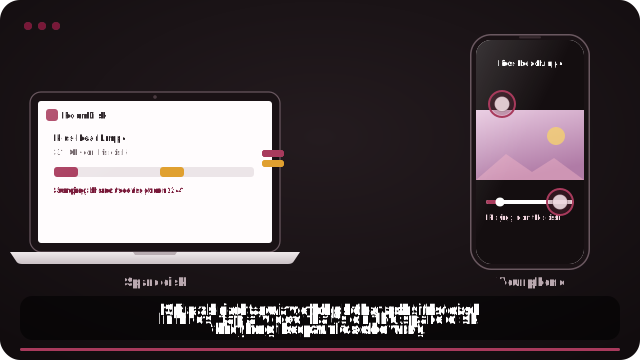
Tap a video in Files and press play. The player asks the disk for just the parts it needs, so long videos start quickly and you can jump ahead.
Use an old phone or tablet as the disk
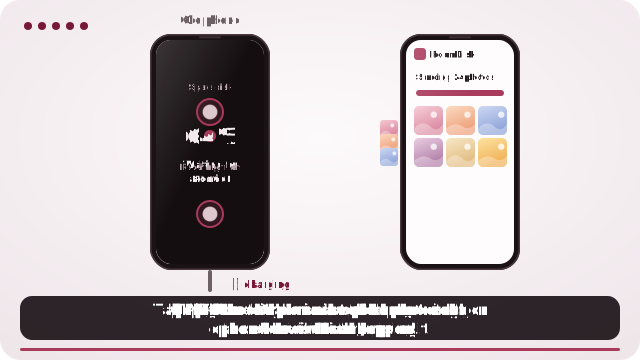
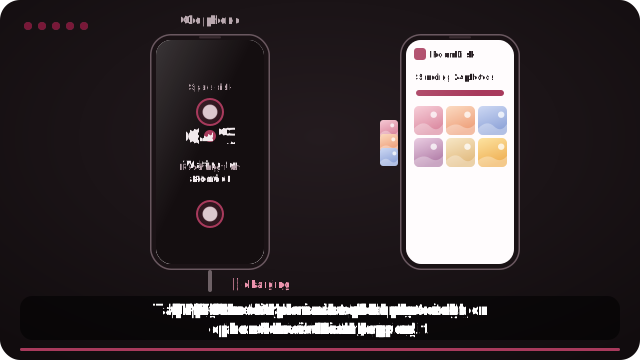
- Plug it in and open RoomDisk; choose Use this device as the spare disk.
- Tap Disk mode: a calm, dark full-screen view that keeps the screen on and shows only what’s happening.
- iPhone and iPad: add a RoomDisk shortcut to the Home Screen (Share › Add to Home Screen) so the files are kept, and use Guided Access to keep RoomDisk on screen.
- Android: pin the app on screen. Computers: just leave the window open.
Phones pause web pages that aren’t on screen. Keep RoomDisk open on the disk while files are moving.
No internet? Use a hotspot
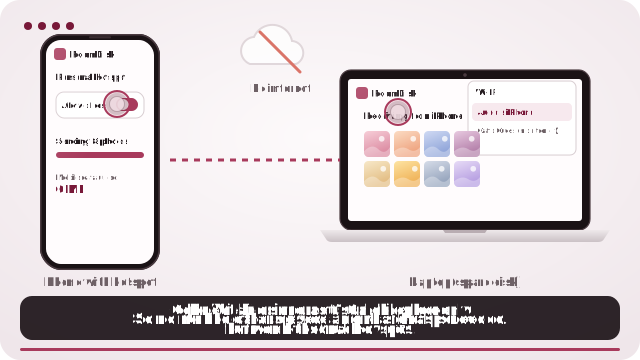
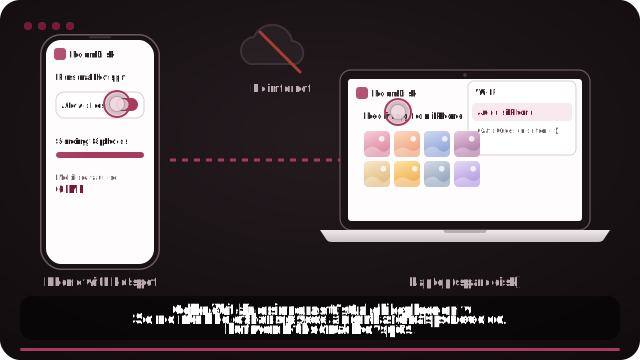
Turn on one device’s personal hotspot and join it with the other. Pairing and transfers work exactly the same; nothing uses mobile data. Open RoomDisk once while online first, so it’s saved for offline use.
Reach your disk from anywhere
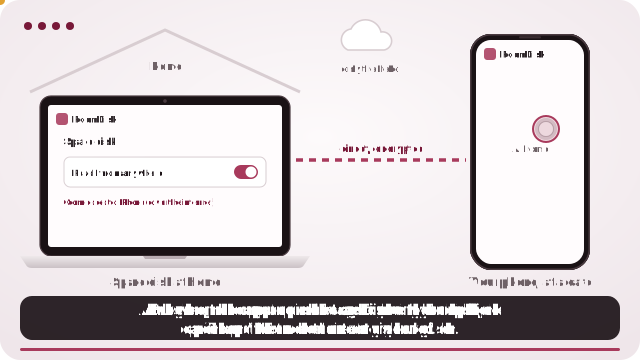
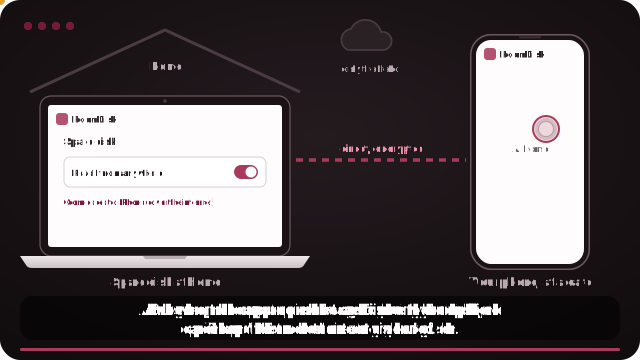
With RoomDisk Anywhere ($29 a year), turn on Reach from anywhere in the disk’s Settings. Devices you paired once at home with Remember ticked then show the disk under Away from your spare disk? on their Connect screen.
The connection is still direct and encrypted between your devices. Keep RoomDisk open on the disk while you use it.
Protect the disk with a password
- On the disk, open Settings and tap Set up under Password protection. Choose a password of at least 8 characters.
- Save the recovery key it shows you (download or copy it). If you forget the password, tap Forgot the password? on the locked disk and enter the key to choose a new one.
- RoomDisk encrypts every file already on the disk, then everything that arrives. The disk asks for the password whenever it opens and locks itself after 15 minutes without use; Lock now locks it straight away. Saving everything, or deleting or moving many files at once, asks for the password again.
- Other devices can still send files to it. To see, open, download or change files, nearby or over Anywhere, they enter the password first.
Only new files, copies and health checks
- Only what’s new: pick your whole camera roll. Big files the disk already has are recognised by name, size and their first and last 256 KB, so they aren’t read again.
- Two copies: after a send, the phone says how many files are now on two or more of your spare disks. In Details, put these on another spare disk too makes the second copy.
- Empty files: 0-byte files (usually a damaged card or an interrupted copy) are flagged and never counted as safe to delete.
- Health check: about once a month, while the disk is idle, it re-reads every file and compares fingerprints, and tells you if anything changed.
- Video checksum lists (Pro): under Receipts, Create writes an ASC MHL file with xxHash64 for every file, the format film crews hand over with footage.
Free up space on your phone
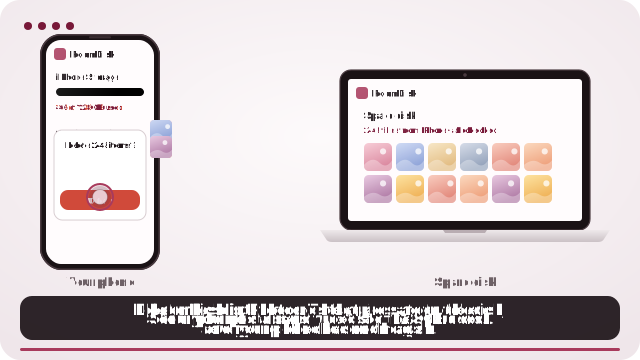
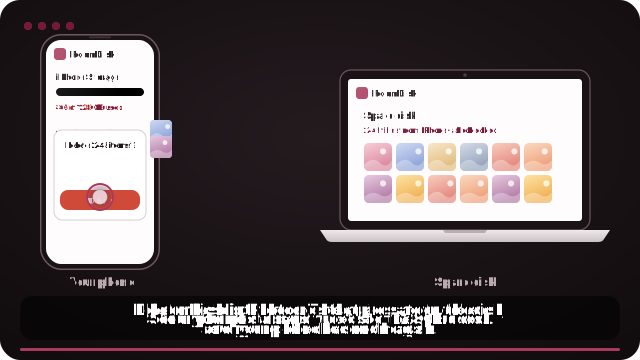
After a send, the summary lists what’s safe to delete. Delete those in Photos or your file manager (iPhone keeps them in Recently Deleted for 30 days). Never delete files that aren’t marked as checked.
Troubleshooting
Still stuck? Email [email protected]. On a failed connection, “Copy debug report” gives us what we need (no addresses or file names).
Try it with the two devices you have
Free to start. Nothing to install, no account.